Connect Plus Integration
Purpose
This
article details the Connect Plus (CP) COSTAR integration.
Integration Description
- The Connect Plus COSTAR integration allows COSTAR users that also take advantage of the Connect Plus booking request functionality to do the following.
- COSTAR users can view their
product availability and Connect Plus pricing from within the Connect Plus
interface.
- COSTAR users can receive
Connect Plus booking requests directly into their COSTAR system as quotations.
Configuration
To enable the Connect Plus integration complete the
following.
- Open COSTAR and go to Settings => Order
Entry Options => Microhouse Integrations => Third Party => Connect
Plus.
- Double click on the relevant branch.
- Enable the options to send product availability, prices and product memos.
- Select the COSTAR pricing level that will be displayed in the Connect Plus interface.
- Select the product types to be displayed in the Connect Plus interface.
- Enable the receiving of Connect Plus booking requests into COSTAR as quotations.
- Enable the Notifications functionality in COSTAR.
- Complete the name of the user enabling the integration.
- Once saved, a notifcation email is sent to both Connect Plus and Microhouse to enable the relevant store to process Connect Plus booking requests.
Product Prices and Availability
Summary
- A store can choose to display their products and their Connect Plus pricing with the Connect Plus interface. This information is uploaded to the Microhouse Document Exchange (MDX) and Connect Plus then interogates the MDX API to retreive the relevant information.
- The Connect Plus pricing can be set to one of the ten pricing levels in COSTAR.
- This information is displayed in Connect Plus when selecting products ...
... and once the product has been added to a booking request.
Quotation Creation
Summary
- Connect Plus will send
Microhouse a confirmed booking request which the Microhouse Document Exchange
(MDX) will send into COSTAR as a quotation.
- When a new quotation is
created, the Notifications button will flash and the quotation can be accessed
by clicking on the Notifications button.
- When COSTAR creates the quotation, the following information will be added.
- Customer information
- Connect Plus booking request reference number
- Vehicle information
- Relevant dates and the time the customer has requested to drop off their vehicle
- Products and services requested by
the customer.
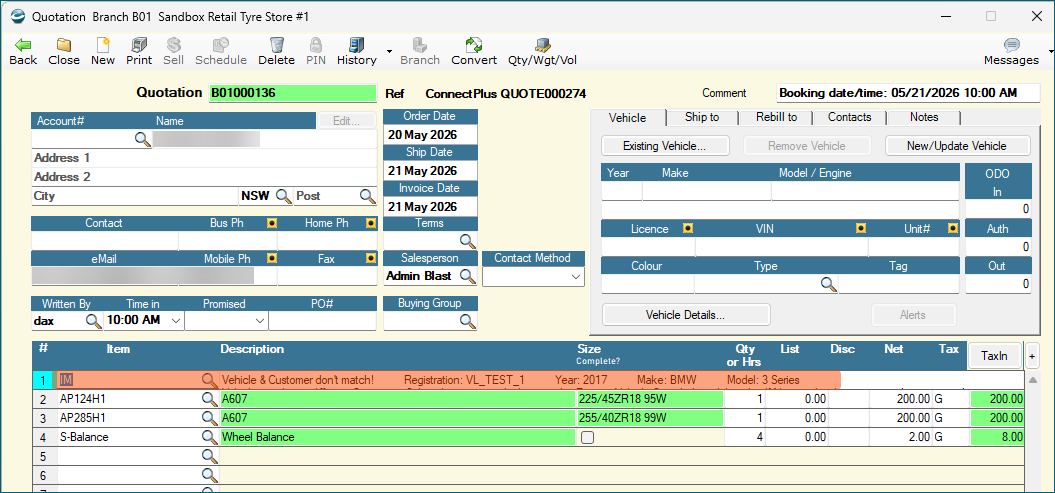
- Please note, a quotation cannot be converted until all the internal memos are actioned and deleted.
Quotation Steps
- Click on the Notifications button is flashing red.

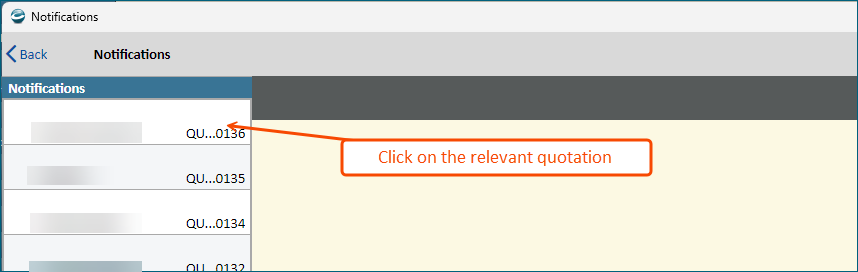
- Select the relevant quotation from the list of notifications.
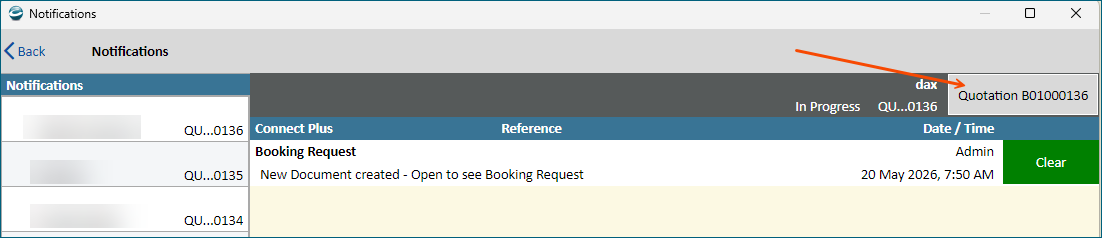
- Click the Quotation button to open the quotation.
- Action any internal memos that need intervention.
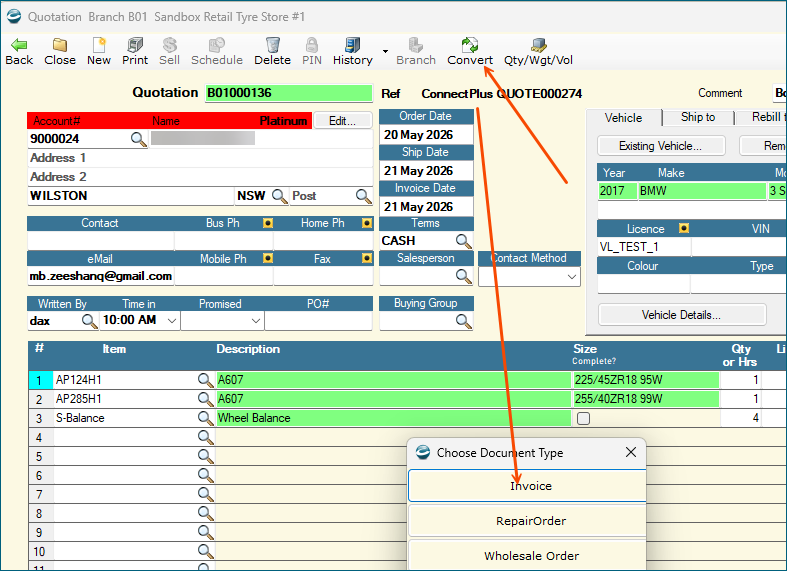
- Once the customer has agreed to go ahead with the work, convert the document to an invoice/repair order. Converting a quotation will automatically clear the related notification.
- The document can then be sold out the same as any other invoice / repair order.
Customers Validation
New Customer and Vehicle
- If the mobile number is not found associated to any customers in COSTAR, the customer information supplied by Connect Plus is added to the document and a new CASH customer can be created using standard COSTAR functionality.·
- If the registration is not
found in COSTAR, a new vehicle is created and stamped with the Vehicle Logic
(VL) vehicle ID.
Existing Customer
- If the mobile number supplied by Connect Plus is associated to a single customer in COSTAR, the customer will be added to the quotation using the customer information from COSTAR. The customer information supplied by Connect Plus will be ignored.
Multiple Customers
- If multiple customers are found
for the mobile number, then no customer will be added to the document, and an
internal memo will be added to the document with the details of the customer.
This notifies the user that they should search for and select the relevant
customer.
- Action required: Search for the correct customer and add it to the quotation. The customer internal memo must then be deleted.
Inactive Customer
- If a single inactive customer
is found for the mobile number, the Connect Plus customer details are added to
the document, and an internal memo is added to the details of the document indicating
the found customer is inactive.
- Action required: Review the inactive customer in customer maintenance, reactivate the customer if needed and then add the now active customer to the quotation. The customer internal memo must then be deleted.
Vehicle Validation
Multiple Vehicles
- When multiple vehicles are
found for the customer, the existing customer is added to the document, and an
internal memo is added which includes the vehicle details supplied by Connect
Plus.
- Action required: Search for the correct vehicle and add it to the quotation. The vehicle internal memo must then be deleted.
Inactive Vehicle
- When a single inactive vehicle
is found, an internal memo is added which includes the vehicle details supplied
by Connect Plus.
- Action required: Review the inactive vehicle in Vehicles, reactivate the vehicle if needed and then add the now active vehicle to the quotation. The vehicle internal memo must then be deleted.
Vehicle and Customer do not match
- When the customer is found, but
the vehicle is found associate with a different customer, the vehicle is not
added to the quotation, but an internal memo is added which includes the
vehicle details supplied by Connect Plus.
- Action required: Review the customer and vehicle combinations and select the correct customer and/or vehicle on the quotation. The Vehicle and Customer internal memo must be deleted.
Product Validation
Product does not exist
- If the product code does not exist in COSTAR, the details of the product will be added as an internal memo.
- Action Required: If the product code needs to be created in COSTAR, add the product via Item Maintenance and then add the product to the quotation. If a different product is to be used, then add the relevant product to the quotation. The product internal memo must then be deleted.
Product is Inactive
- If the product code is inactive in COSTAR, the details of the product will be added as an internal memo.
- Action Required: Review the product in Item Maintenance and activate the product if need and then add the active product to the quotation. The product internal memo must then be deleted,
Service Validation
Service does not exist
- If the service code does not exist in COSTAR, the details of the service will be added as an internal memo.
- Action Required: If the service code needs to be created in COSTAR, add the service via Service Item Maintenance and then add the service to the quotation. If a different service is to be used, then add the relevant service to the quotation. The service internal memo must then be deleted.
Service is Inactive
- If the service code is inactive in COSTAR, the details of the service will be added as an internal memo.
- Action Required: Review the service in Service Item Maintenance and activate the service if need and then add the active service to the quotation. The service internal memo must then be deleted,
Related Articles
REPCO Integration to COSTAR
REPCO and COSTAR Mobile
The attached video is an overview of how the REPCO Navigator Pro, COSTAR Inspection forms and COSTAR Mobile all interact and come together in COSTAR to make processing quick, accurate and professional. If you have any queries about either the REPCO ...Dishonoured Cheques
This document covers the processing of a Dishonoured Cheque whether it is for an Account Payment or Cash Sale. Select the appropriate method to follow. Account Payment If a cheque is dishonoured from an Account Payment, the value of the cheque, and ...Sales Analysis Settings
Microhouse Sales Analysis settings are managed by going to the Settings, Order Entry Options, Integration2 page, then clicking the "Configure Microhouse Integration Providers" button. Use Microhouse Sales Analysis: Check this option to enable the ...Getting COSTAR up and running after a Windows® update
As part of your Windows update the SQL database service is stopped to allow the update to complete. Sometimes the service does not restart automatically. COSTAR relies on this service to be running on your COSTAR server so it may need to be manually ...